Live concepts
The Live page follows today's routes while your vehicles are on the road. For each route it shows which stops are done and when the vehicle should reach the rest.
In short
- A driver who uses the driver app records a delivery event at each stop. That makes the stop Delivered.
- A vehicle's track shows where the vehicle stayed put. Live uses the track to show which stops the vehicle has been to.
- A vehicle that has only a vehicle tracker records no delivery events. For that vehicle, a stop that the track shows as Visited counts as done, and Live works out the later ETAs from there.
The rest of this page explains each idea in a little more detail. Every word in bold is also in the glossary.
Driver app or vehicle tracker
Every route is linked to one tracking device, which reports where the vehicle is. There are two kinds:
- The driver app runs on the driver's phone. It reports the vehicle's position, and the driver records a delivery event in it at each stop.
- A vehicle tracker is fitted to the vehicle and connected to Intelligent Routing through your tracking company. It reports the vehicle's position and nothing else.
A route whose tracking device is a vehicle tracker is tracker-only. Nobody on that vehicle can record a delivery event, so the track is the only sign that a stop was done.
Live reads the kind from the route's tracking device. There's no setting to switch on, and one team can use both kinds on the same day.
The track and possible stops
A vehicle's track is the path its tracking device reported during the day. Each reported position is a track point.
A possible stop is a place where the track shows that the vehicle stayed put for 2 minutes or more. A possible stop isn't always a delivery. The driver may have been at a fuel station or at lunch.
Live compares the track with each stop on the route. Close by means within 300 m of the stop's address.
- Track close by: a track point is within 300 m of the stop. The vehicle came past.
- Possible stop close by: a possible stop is within 300 m of the stop. The vehicle stayed put there.
Two more rules decide which stops a possible stop counts for:
- One possible stop counts for every stop within 300 m of it. Two customers on the same street both get it.
- A possible stop within 300 m of your depot counts for no stop. A vehicle that's loading isn't at the customer next door.
Done stops and skipped stops
A stop is done in two cases:
- The stop has a delivery event. It was done when the driver recorded the event.
- The route is tracker-only and the vehicle stayed put close by and then left. The stop was done when the vehicle left.
On a route with the driver app, a stop where the vehicle stayed put isn't done until the driver records a delivery event. The driver could have recorded one and didn't, so the stop stays open.
A skipped stop is a stop that the vehicle seems to have gone past. Live finds the stop that was done last, by the clock. Every stop before it on the route that isn't done is a skipped stop.
Live can't tell that a stop was skipped until a later stop is done.
A stop's status
Every stop on Live has one status. Read the list from the top. The first line that fits is the status.
- Delivered. The stop has a delivery event. A delivery event always wins over what the track shows.
- Visited. A possible stop is close by, and the vehicle has left.
- At the stop. A possible stop is close by, and the vehicle is still there.
- Skipped. The stop is a skipped stop, and no possible stop is close by. See Skipped stops.
- Upcoming. Every other stop.
A stop changes from At the stop to Visited once the track shows that the vehicle has left. Live waits for up to three track points after the vehicle leaves, which usually takes a minute or two.
If the vehicle comes back to a stop that is already Visited, the stop keeps the times of the first visit.
How the ETA follows the vehicle
An ETA (estimated time of arrival) is when the vehicle should arrive at a stop, worked out from where the vehicle is now. Live works out new ETAs for today's routes when you open the page, when you click Refresh, and when a delivery event comes in.
- Where it starts. The ETA starts from the vehicle's latest track point, at the current time. If a stop was done after that track point was reported, the ETA starts from that stop, at the time the stop was done.
- Which stops get a new ETA. Every stop that is neither done nor skipped, in the order of the route. Live doesn't change the order of a route.
- Done stops get no new ETA. Live shows the time of the delivery event, or the time the vehicle arrived, instead.
- Skipped stops get no new ETA either. Live doesn't send the vehicle back to a skipped stop, and the stop keeps its planned time.
Two things follow that can surprise you:
- A stop that is At the stop isn't done yet, so it still has an ETA. If an earlier stop on the route is still open, the ETA goes to that earlier stop first.
- On a route with the driver app where the driver records nothing, no stop is ever done. The ETAs keep running through every stop in the order of the route.
A route from an earlier day shows each stop's status with its planned time. Live works out no new ETAs for it.
Skipped stops
A skipped stop with no possible stop close by has the status Skipped. Live draws it as a white circle with a thin outline, and the number takes the route's colour. Live works out no new ETA for the stop.
Skipped means that a later stop was done first, and that the track shows no possible stop within 300 m of the stop. It doesn't prove that the vehicle wasn't there, and it doesn't cancel the stop. The usual reasons are:
- The delivery took less than 2 minutes, so the track shows no possible stop.
- The vehicle stayed put more than 300 m from the stop's address. That usually means the address's position is wrong. Correct it in your address book.
- The driver left the stop for later.
When a stop is Skipped, look at the track on the map and ask the driver. Live has no button yet to mark a stop by hand.
A stop can change back from Skipped. Take a tracker-only route with stops A, B, C and D, driven out of order:
- The vehicle stays put at C first and then leaves. C is done. A and B are skipped stops, so their status is Skipped. D is Upcoming.
- The vehicle then stays put at A. A is At the stop. B is still Skipped.
- The vehicle leaves A. A is now the stop that was done last, and no stop comes before A on the route. B is no longer a skipped stop. B is Upcoming again, and the ETA goes to B and then D.
The last stop of a route is never Skipped, because no stop comes after it.
A route with the driver app works the same way, with one difference. A stop is done only when the driver records a delivery event, so a stop is skipped only when a later stop has a delivery event.
What you see on Live
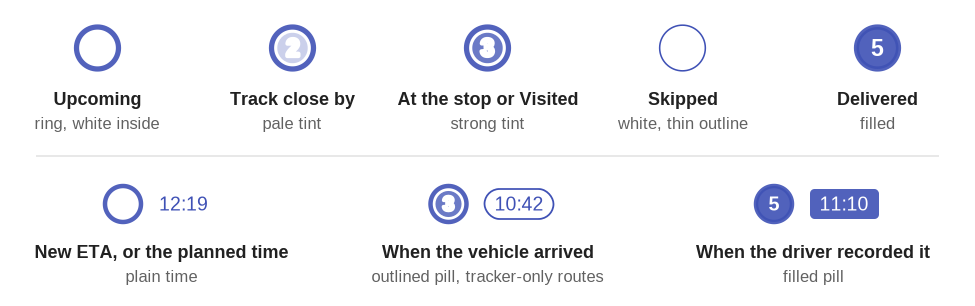
Each stop is a numbered circle in the route's colour, in the list and on the map.
- A ring with a white inside: the track never came close by.
- A pale tint inside: the track is close by.
- A strong tint inside: a possible stop is close by. The stop is At the stop or Visited.
- A white circle with a thin outline, and the number in the route's colour: the stop is Skipped. It has no tint, even when the track is close by.
- A circle filled with the route's colour: the stop is Delivered.
The time next to a stop shows where the time comes from:
- A filled pill shows when the driver recorded the delivery event.
- An outlined pill shows when the vehicle arrived at a Visited stop on a tracker-only route. Nobody confirmed that stop. Only the track shows it.
- A plain time is the stop's new ETA. For a skipped stop, and on a route from an earlier day, it's the planned time.
Hover over a stop to read what the track showed, for example "Stayed put here 09:12 to 09:21, from the track". A stop that is Skipped says "Skipped: a later stop was done first. The track shows no possible stop here."
A route with the driver app gets the tints and the Skipped look, but never the outlined pill.
What the track can't tell you
A possible stop is not a delivery. Keep these in mind when you read Live for a tracker-only route:
- Whether the delivery happened. A vehicle that stayed put at a customer who was closed still counts as done.
- Short deliveries. A delivery that takes less than 2 minutes isn't a possible stop.
- Which neighbour. One possible stop counts for every stop within 300 m, even if the driver delivered to only one of them.
- Customers next to your depot. A possible stop within 300 m of the depot counts for no stop, so a customer that close to the depot is rarely marked.
- The end of the day. When a vehicle stays at its last stop and its vehicle tracker goes quiet, that stop stays At the stop.
- When to refresh. A tracker-only route gets no delivery events, so its stops change only when you open the page or click Refresh.
- The Driver ETA page. The page that shows one stop's ETA doesn't use the track yet. For a tracker-only route, it can show a different ETA from the one on Live.